
Manually attaching external shipping labels
Uploading External Return Shipping Labels
ReturnZap allows merchants to upload externally created return shipping labels directly into the platform. This is useful when a merchant needs to use a shipping carrier that is not currently supported through ReturnZap’s native integrations.
Requirements
To use external shipping label uploads, the following conditions must be met:
- The return must require manual review and approval
- The Allow manual label upload setting must be enabled in Settings > Return shipping methods
How to Enable Manual Label Upload
To enable this feature:
- Go to Settings
- Open Return shipping methods
- Enable Allow manual label upload. The option only appears while approval-based workflows are turned on in Settings > Workflow and approvals.
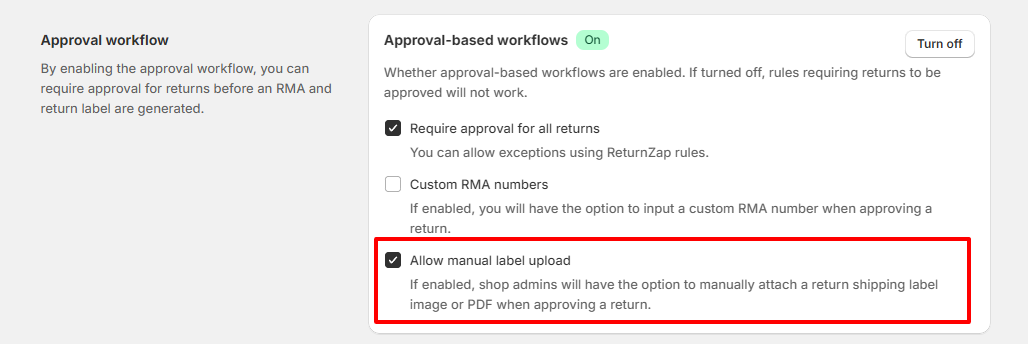
Once this setting is enabled, admins reviewing returns will have the option to attach an external shipping label as part of the approval process.
How It Works
Customers can still submit their return request normally and select the appropriate return shipping method in the portal.
When the return is reviewed by a customer service agent or admin, they will see the option to upload an external shipping label file when approving the return.
Supported upload formats include:
- Image files (JPEG, PNG)
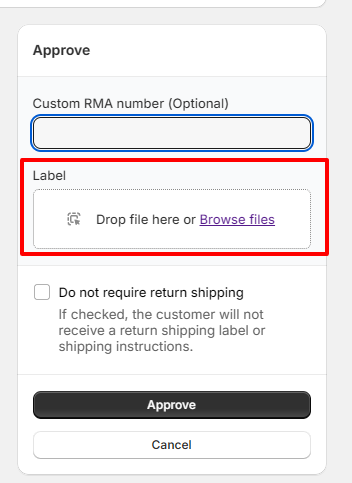
After the return is approved, the uploaded label will be sent to the customer by email, just as it would be if the label had been generated directly through ReturnZap.
Important Notes
- External label upload is optional when the setting is enabled
- ReturnZap does not link tracking for externally uploaded labels
- Manual entry of tracking numbers is not currently supported
- The customer will still receive the label and can use it to ship the return back normally