
Requiring Photo & File Uploads in the ReturnZap Portal
Requiring Photo & File Uploads in the ReturnZap Portal
ReturnZap gives you flexible control over when and how customers are prompted to upload files as part of the return process. There are two ways to configure file upload requirements, and you can use either or both depending on your needs.
Method 1: File Uploads by Return Reason
You can configure file upload behavior at the return reason level. For each return reason in your settings, you'll find a dropdown that lets you control whether file uploads are:
- Disabled – Customers will not see a file upload prompt (default)
- Optional – Customers can upload files but are not required to
- Required – Customers must upload at least one file before proceeding
You can also choose the type of upload you want to prompt for. ReturnZap supports a wide range of file types in the portal, including photos, videos, audio files, and documents such as PDFs, Word files, spreadsheets, and plain text files.
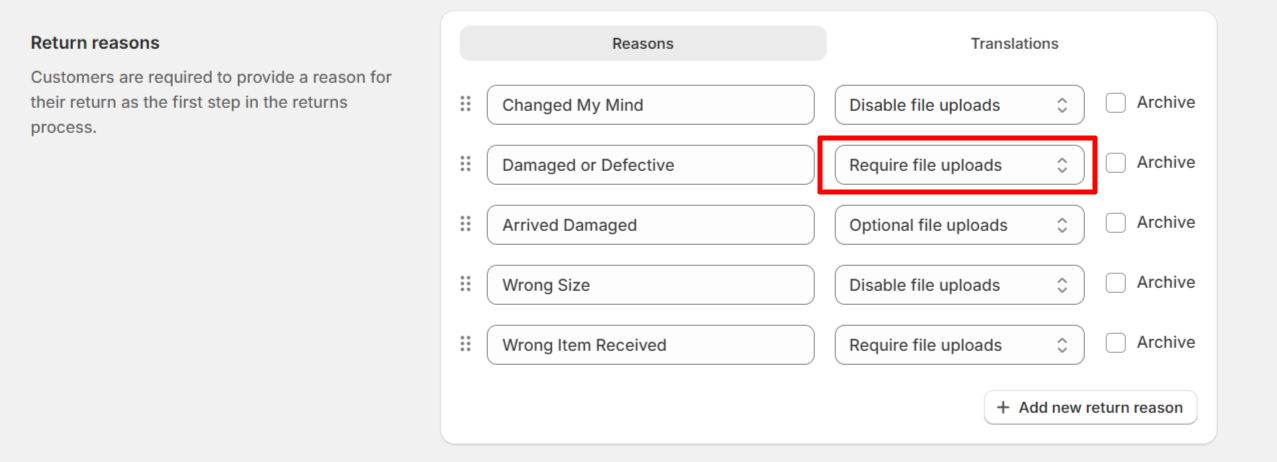
This is the simplest way to collect files, and works best when you want a consistent upload requirement applied across all returns for a given reason (e.g., always requiring photos when a customer selects "Item arrived damaged").
To configure this: Go to your return reasons settings, select a return reason, and use the file upload dropdown to set your preference.
Method 2: File Uploads via Follow-Up Questions
Follow-up questions offer a more dynamic way to request file uploads. Instead of tying the upload prompt to a specific return reason, you can create a follow-up question that asks customers to upload files, and control exactly when it appears.
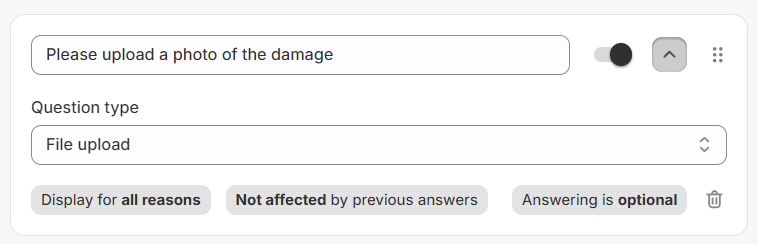
The key advantages of this approach:
- Conditional display – The upload prompt only appears in specific situations, rather than for every return under a given reason
- Answer-dependent logic – You can trigger the file upload request based on how a customer answers a prior follow-up question
- Rule-based display – Using ReturnZap's rule engine, you can use the Show Question rule action to show the file upload prompt based on any combination of return attributes and conditions
- Conditional requirements – You can use the Require Question rule action to make a file upload question conditionally mandatory, not just conditionally visible. This lets you enforce photo uploads as required in specific scenarios without requiring them globally.
This method gives you the most flexibility and is ideal when you only need files in certain edge cases, or when the decision to request files depends on information gathered earlier in the return flow.
To configure this: Go to your follow-up questions settings and create a new question with the file upload response type. Then configure the display conditions or rules to control when it appears.
Setting Minimum and Maximum File Requirements
You can enforce global file limits that apply across the entire return process. These are configured at the shop level in your settings:
- Minimum files – Require customers to upload at least a certain number of files before they can proceed (e.g., at least 2 photos)
- Maximum files – Cap the total number of files a customer can attach (e.g., no more than 5)
For example, you could require customers to submit between 2 and 5 files as part of their return — ensuring you have enough documentation without being overwhelmed with uploads.
Which Method Should I Use?
|
|
Return Reason Upload Setting | Follow-Up Question |
|---|---|---|
| Applies to all returns for a reason | ✅ | ❌ |
| Conditional based on prior answers | ❌ | ✅ |
| Rule-based display logic | ❌ | ✅ |
| Can be conditionally required via rules | ❌ | ✅ |
| Supports global min/max file limits | ✅ | ✅ |
| Quickest to set up | ✅ | ❌ |
You can combine both methods — for example, making uploads optional at the return reason level while using a follow-up question to require files in specific scenarios.