
Return for Repair
Sending items back for repair
Return for repair lets your customers send an item back to be fixed and returned to them, instead of requesting a refund, store credit, or exchange.
ReturnZap creates the return and label as usual, but no money is refunded or credited for a repair item.
Availability: Return for repair is included on the Advanced and Enterprise plans
Turn on return for repair
- In ReturnZap, go to Settings > Return options.
- Scroll to the Return for repair section.
- Turn on Offer return for repair.
- Configure the settings and save
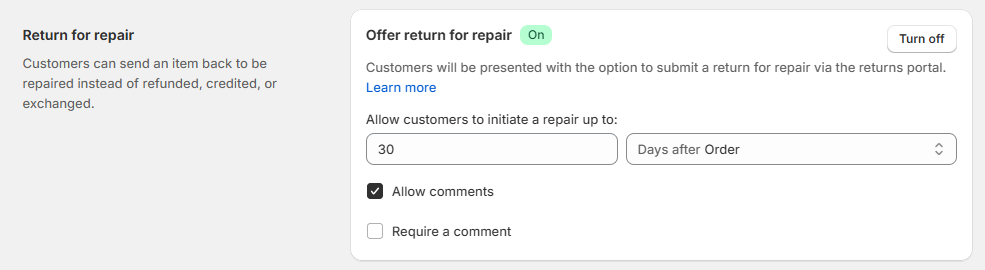
- Allow customers to initiate a repair up to: the number of days a customer can request a repair, counted from the Order, Delivery, or Fulfillment date. This window is separate from your refund window.
- Require delivery before return: appears only when the window counts from Delivery. The Shopify order must have a delivery date before a repair can be requested.
- Allow comments: asks the customer to describe the problem. Turn on Require a comment to make it mandatory.
What your customers see
When a customer selects an item that is still inside the repair window, the returns portal offers a Return for Repair option with the description “Send your item in to be repaired and returned to you.” Repair always appears after the other return options.
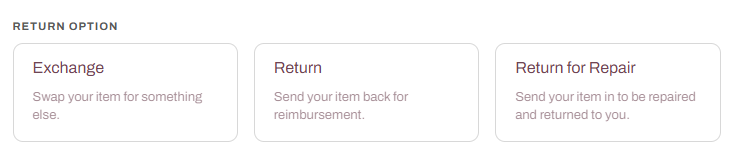
- No refund amount, fees, or bonuses are shown for a repair selection.
- A return that contains only repair items skips the refund comparison step.
- Customers can mix repair items with refunds, exchanges, or store credit on the same return.
You can change the button label and description along with your other return-type labels. Clearing a customization restores the default wording.
Control who can request a repair with rules
Once repair is enabled, Repair appears in your rule conditions and actions.
- Offer repair only: create a rule with the action Do not allow return type and select Refunds, Exchange (all), and Store credits. Add a condition such as Return reason or Days since order. Customers who match can still choose a repair inside the repair window.
- Hide repair from customers: create a rule with the action Do not allow return type targeting Repairs. Your team can still create repair returns from ReturnZap.
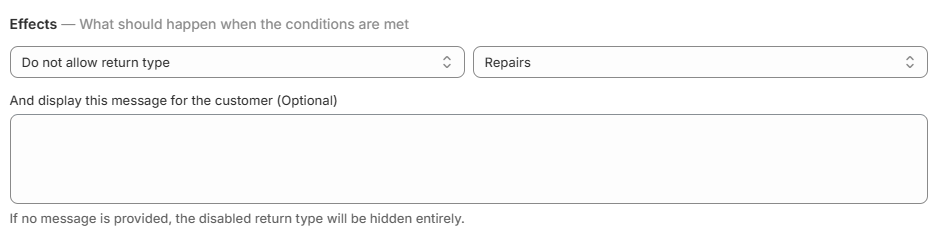
Rules that deny or hide return options apply only in the returns portal. They do not block your team from creating a return in ReturnZap. Approval, restocking fee, and warehouse rules still apply.
Create a repair return for a customer
Click Create return, search for the order, and choose Repair for the item. The repair window does not apply when your team creates the return, but Offer return for repair must be on. Pick the return destination the same way as any other return.
Track the repair
Repair returns move through the same workflow stages as your other returns. To track repair progress, go to Settings > Workflow and approvals and click Add custom stage to create stages such as “In repair” or “Shipped back”. A custom stage can notify the customer when the return enters it. See Configuring Approval Workflows.
Receiving the package records that it arrived. It does not mark the item as repaired.
Mark the item as repaired
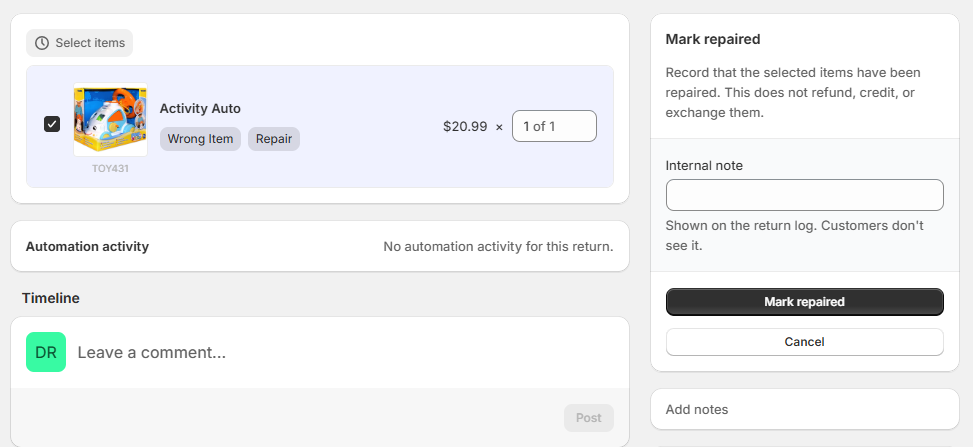
- Open the return. Repair items are labeled Repair.
- Select the item and click Mark repaired.
- Optionally add an Internal note. It is saved to the return log and is not shown to the customer.
- Confirm. The item status changes to Repaired.
Things to know:
- Mark repaired does not refund, credit, exchange, or restock the item, and ReturnZap does not email the customer.
- Use Mark repaired to close a repair you are not completing as well. Add an internal note explaining why.
- Mark repaired is not available for items that are missing, rejected, or expired.
- A repair item cannot be changed to a refund, store credit, or exchange. Once the repair is closed, the customer can start a new return for that item if your other policies allow it.
- A return with an open repair item is not automatically archived until the repair is marked repaired.
Shopify sync
A return that contains only repair items is not synced to the Shopify order, and shows Disabled for Shopify sync with the note “Returns for repair aren’t synced to your Shopify orders.” Returns that mix repair items with other return types sync as usual.
Webhooks
In webhook payloads, repair items have return_type set to REPAIR . After you mark an item repaired, a Return Updated event is sent and the item’s resolution_status is REPAIRED .
Changing plans or turning repairs off
- Turning off Offer return for repair removes the option from the portal and stops your team from creating new repair returns.
- If you move to a plan that does not include repairs, no new repair returns can be created and the portal option is hidden. Existing repair returns can still be received, moved through stages, and marked repaired.